How To's
/
How to add recipe to a blog post in Shopify?
How to add recipe to a blog post in Shopify?
Learn how to add recipe to a blog post in Shopify and generate recipe structured data
3 min read
vevy.ai lets you drop a full recipe card — ingredients, instructions, prep and cook times, servings, difficulty, and nutrition — into your Shopify blog posts as one of the layout elements.

This works for posts made in Shopify's own blog editor too. For this, you just need to sync the post first on the vevy.ai's dashboard:
Syncing blog posts add them to the vevy.ai's dashboard, so you can add recipes and other blocks with the Blog Builder, even if the post wasn't created in vevy.ai.
📖 Read more about Recipe Structured data and JSON-LD structured data for a recipe
How to add a recipe block to a blog post in Shopify?
Open your blog post in vevy.ai's Blog Builder.
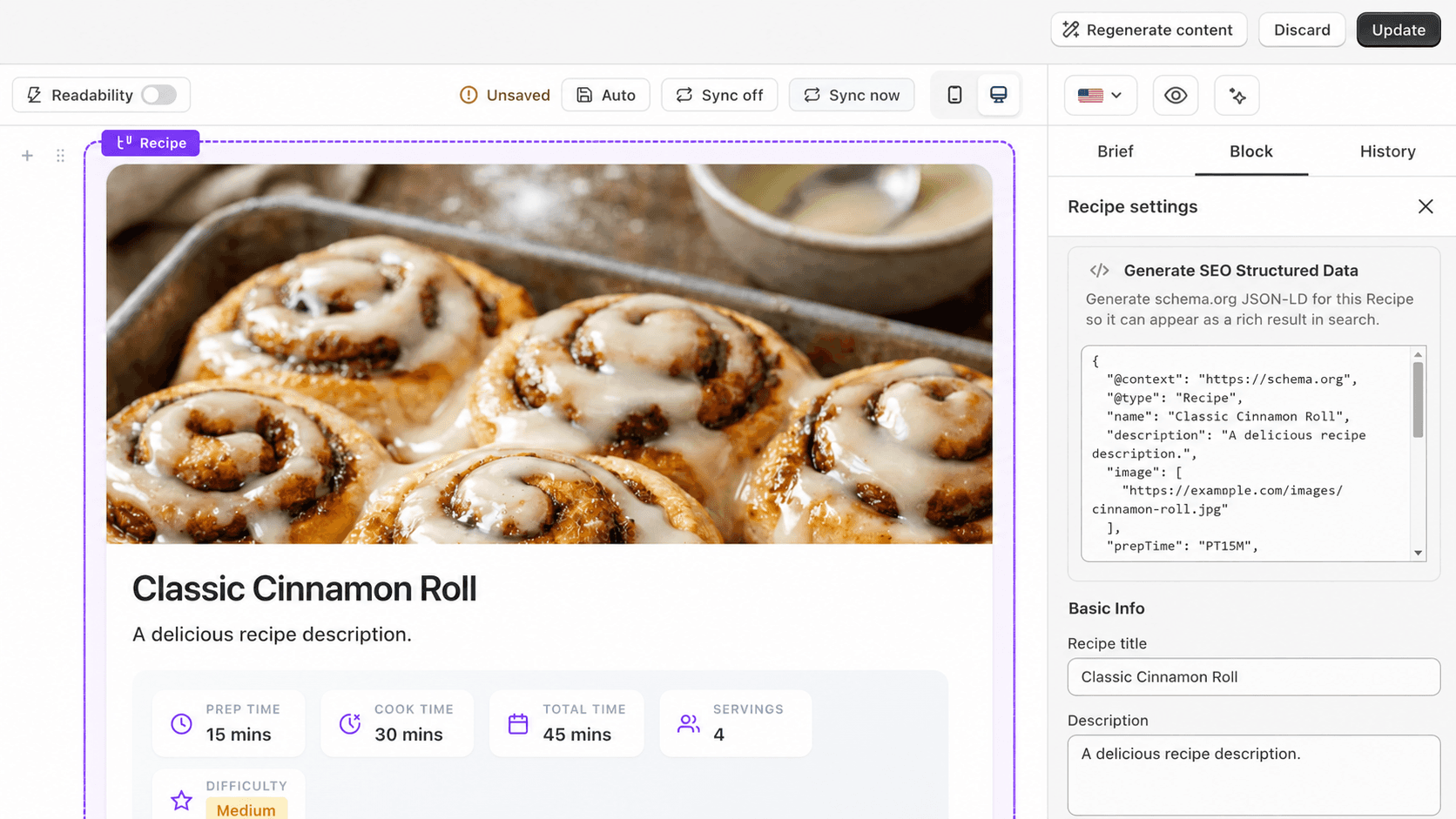
In the Elements panel on the left, open Layout and find Recipe. You can also type "recipe" in the search box.

Drag the block into your post, right where you want it — a blue line shows where it will land.
Click the block to open Recipe settings in the Block tab on the right.
Fill in Basic Info: recipe title, description, and a recipe image (JPG, PNG, GIF, WebP, SVG).
Fill in Details: prep time, cook time, servings, and difficulty. Total time is calculated for you.

Add your Ingredients and Instructions. Click Add for each new line, and the trash icon to remove one.
Click Generate structured data to output schema.org JSON-LD, so the recipe can show up as a rich result in search.
Click Save draft or Publish.
What you can customize
Basic info — recipe title, description, and hero image
Details — prep time, cook time, servings, and difficulty (total time is auto-calculated)
Ingredients — add, edit, reorder, or delete as many as you need
Instructions — numbered steps, added and removed the same way
Nutrition — calories, protein, carbs, and fat
Chef's notes — optional tips or variations under the recipe
Accent color — set the highlight color of the card to match your brand
Labels — rename any section or meta label. For craft or DIY guides, use "Supplies" instead of "Ingredients" and "Steps" instead of "Instructions". You can also change the count word ("items"), the difficulty label, the notes heading, and every nutrition label.
How to generate structured data for Recipe block?
Structured data tells Google exactly what your recipe contains — ingredients, times, servings, nutrition — so the post becomes eligible for a rich result with a photo, rating, and cook time right in search.
Fill in the Recipe block first: title, description, image, times, servings, ingredients, and instructions. The more complete the block, the more complete the markup.
In Recipe settings, open the Structured data card and click Generate structured data.

Publish the post. vevy.ai injects the schema.org
RecipeJSON-LD into the<head>of the blog page automatically — no theme edits, no code.