


How To's
/
How to embed social media posts in a Shopify blog post: YouTube, Vimeo, Instagram, TikTok, X and LinkedIn
How to embed social media posts in a Shopify blog post: YouTube, Vimeo, Instagram, TikTok, X and LinkedIn
Embed YouTube and Vimeo videos, Instagram posts, TikTok videos, X (Twitter) posts and LinkedIn posts in your Shopify blog.
3 min read
You can embed videos and social media posts in a Shopify blog post with vevy.ai by dragging the right element into the post and pasting a link. A YouTube or Vimeo video then plays inside your article, and an Instagram, TikTok, X or LinkedIn post shows live with its caption and likes, so readers don't have to leave your store to see it.
Shopify's own blog editor can only embed videos and social posts if you paste iframe or HTML code into each article. vevy has a Video element for YouTube, Vimeo and video files, and four social embed elements for Instagram, TikTok, X (Twitter) and LinkedIn, so you can add any of them to a blog post in a few clicks.
This guide shows how to embed each type of video and post, where to find the link or embed code on each platform, and where to place embeds so they support your content instead of distracting from it.
Which embed should you use?
The right embed depends on what you want the video or post to do for your article. Each element suits a different kind of content.
Element | What it shows | Best for | What to paste |
|---|---|---|---|
Video | A YouTube, Vimeo or video file player | Tutorials, product demos and brand videos | Video URL |
A photo, carousel or reel with caption and likes | Product photos, styling ideas and customer posts | Post URL or embed code | |
TikTok | A short video that plays in the post | Product demos, tutorials and trends | Video URL or embed code |
X (Twitter) | A post with its text, media and replies | Customer praise, announcements and press mentions | Embed code |
A post with text, media and reactions | Company news, partnerships and B2B content | Post URL or embed code |
Before you start
To embed videos or social media posts in a post you wrote in Shopify's own blog editor, sync the post into vevy first. Open vevy from the Apps menu in your Shopify admin and click Sync Shopify posts on the dashboard. Your existing posts then show in the Blog Planner, and you can open any of them in the blog builder.

To find the elements, open a post in the blog builder and look in the Elements panel. The Video element is in the Media & Marketing group, which is on the Starter and Pro plans. The Instagram, TikTok, X (Twitter) and LinkedIn elements are in the Social & Embeds group.
The video or post you embed must be public or unlisted. Private videos, posts from private accounts, deleted posts and Instagram stories can't be embedded on any website.
How to embed a YouTube or Vimeo video in a Shopify blog post
To embed a YouTube or Vimeo video in your Shopify blog post, drag the Video element into the post and paste the video's link into Video URL. The player loads right away, and readers can watch the video without leaving your article. You don't need any iframe code or theme edits.
Open your blog post in the blog builder.
In the Elements panel, open the Media & Marketing group and find Video.
Drag the Video element into your post, where you want the video to play.

Click the element to open Video settings in the Block tab on the right.
Paste a YouTube link, a Vimeo link or a direct video file URL into Video URL. vevy shows which source it detected, and the player loads in the canvas.

Choose an Aspect ratio. 16:9 (Widescreen) fits standard YouTube and Vimeo videos.
Set the Playback options, then click Save draft or Publish.
Video settings you can change
The Video element has these settings:
Video URL: a YouTube link, a Vimeo link or a direct link to a video file.
Aspect ratio: 16:9 (Widescreen) and other ratios. Match it to your video, so the player shows no black bars.
Show controls: shows play, pause, volume and the other player controls.
Autoplay: starts the video when the reader reaches it. Most browsers only allow autoplay when the video is muted.
Muted: starts the video without sound.
Loop: plays the video again when it ends.
How to add a video from your computer to a blog post
To add a video file from your computer to a Shopify blog post, upload it to Shopify first and then paste its link into the Video element. In your Shopify admin, go to Content > Files, upload the video and copy its link. Then paste that link into Video URL, and the video plays in your post like a YouTube video.
How to get the link of a YouTube or Vimeo video
To copy the link of a YouTube video, open the video and click Share, then Copy. For Vimeo, open the video, click Share and copy the link. You can also copy the address from your browser's address bar. Both regular videos and YouTube Shorts work.
💡 Pro Tip
A short looping product video works well with Autoplay, Muted and Loop turned on and Show controls turned off. It plays like a moving photo, and it shows the product from every side without any clicks.
Social media embeds
The other four elements embed posts from social media. They are in the Social & Embeds group, and they all work the same way.
How social embeds work in vevy
Every social embed in vevy uses the same Social Embed settings panel. When you click a social embed in your post, the panel opens on the right with two settings:
Platform: Instagram, TikTok, X (Twitter) or LinkedIn. It's set for you when you drag in an element, and you can change it here.
URL or embed code: the link to the post, or the embed code you copied from the platform.

After you paste, vevy checks what you entered and shows Post URL detected or Embed code detected under the field. The post then loads inside your blog post, so you can see exactly how readers will see it.
A link is the quickest option. An embed code works too, and it's the one to use when a platform doesn't give you a link that works, like X.
How to embed an Instagram post in a Shopify blog post
To embed an Instagram post in your Shopify blog post, drag the Instagram element into the post and paste the post's URL in the settings panel. The photo, carousel or reel then shows in your article with its caption and likes.
Open your blog post in the blog builder.
In the Elements panel, scroll to the Social & Embeds group and find Instagram.
Drag the Instagram element into your post, where you want the post to show.

Click the element to open its settings on the right.
Paste the Instagram post URL into URL or embed code. You can paste the embed code instead.

Wait for the post to load in the canvas, then click Save draft or Publish.
How to get the link or embed code of an Instagram post
To copy the link of an Instagram post, open the post, tap the ··· menu (or the share icon on the Instagram app) and choose Copy link. On a computer, the same menu also has Embed, which gives you the embed code.
Can you embed Instagram reels?
Yes. To embed an Instagram reel in a blog post, copy the reel's link and paste it into the Instagram element the same way as a regular post. The reel plays inside your article.
💡 Pro Tip
Customer posts that show your product in real life build more trust than studio photos. Ask the customer for permission before you embed their post, and credit them in your text.
How to embed a TikTok video in a Shopify blog post
To embed a TikTok video in your Shopify blog post, drag the TikTok element into the post and paste the video's URL or embed code in the settings panel. The video then plays right inside your article.
Open your blog post in the blog builder.
In the Elements panel, open the Social & Embeds group and find TikTok.
Drag the TikTok element into your post.

Click the element to open its settings on the right.
Paste the TikTok video URL or embed code into URL or embed code.

Wait for the video to load in the canvas, then click Save draft or Publish.
How to get the link or embed code of a TikTok video
To copy the link of a TikTok video, open the video, tap Share and choose Copy link. On a computer, the Share menu also has Embed, which copies the embed code.
Will the TikTok video play in my blog?
Yes. Readers can watch the TikTok video inside your blog post without leaving your store, and they can open it on TikTok if they want to follow your account.
💡 Pro Tip
TikTok videos work best next to the step they show. For example, put a styling video right after the paragraph that describes the outfit, so readers see the idea in action.
How to embed an X (Twitter) post in a Shopify blog post
To embed an X (Twitter) post in your Shopify blog post, drag the X (Twitter) element into the post and paste the post's embed code in the settings panel. The post then shows live in your article, with its text, media and replies.
Open your blog post in the blog builder.
In the Elements panel, open the Social & Embeds group and find X (Twitter).
Drag the X (Twitter) element into your post.

Click the element to open its settings on the right.
On X, open the post you want, click the ··· menu and choose Embed post. Copy the code.
Paste the embed code into the settings panel.
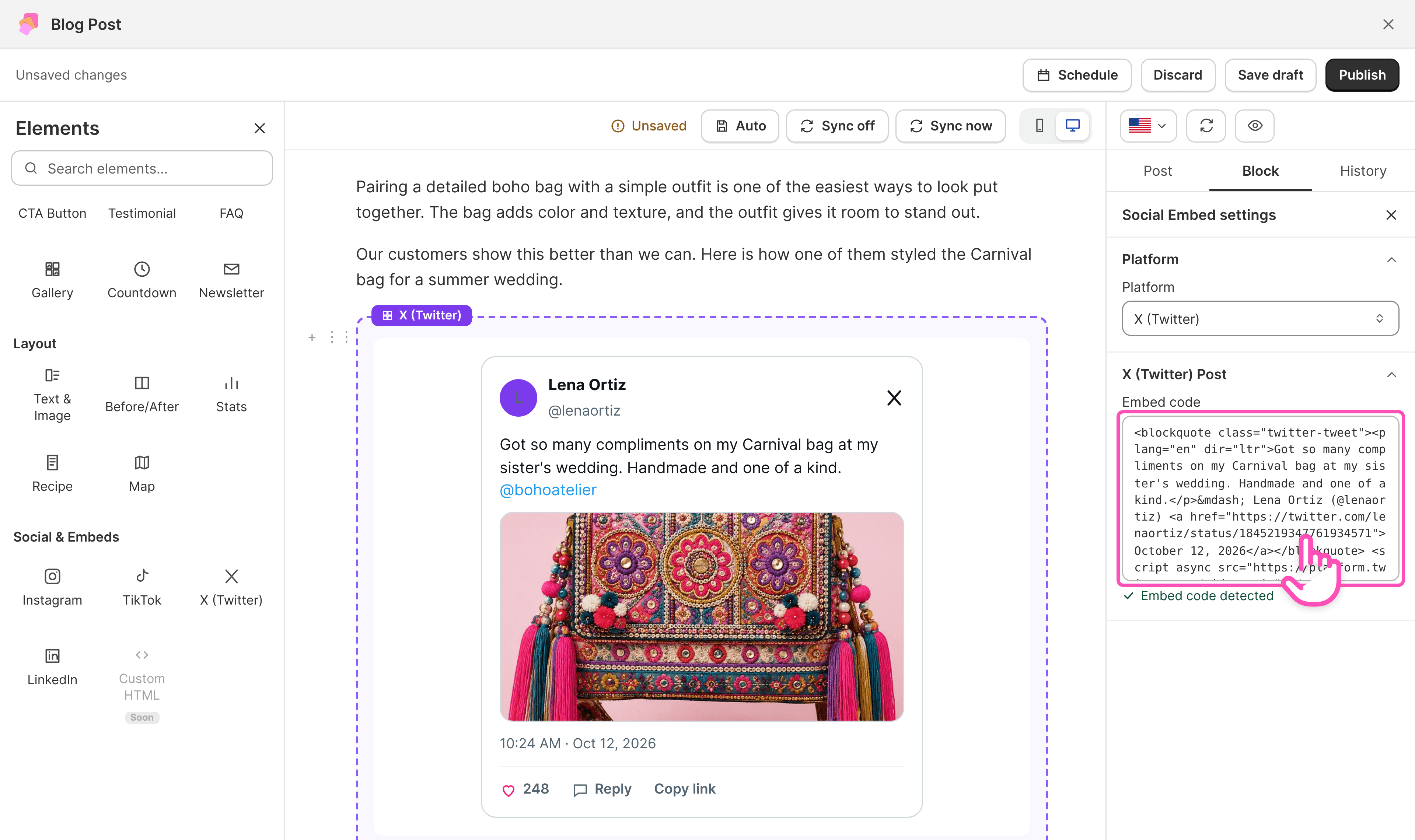
Wait for the post to load in the canvas, then click Save draft or Publish.
How to get the embed code of an X post
To get the embed code of an X post, open the post on X on a computer, click the ··· menu and choose Embed post. X opens a page with the code ready, and you click Copy Code. The code includes the post's text, so readers see the post even while X is still loading it.
💡 Pro Tip
X posts work well as social proof. Embed a customer's post praising your product, or a mention from a well-known account, right after you describe that product.
How to embed a LinkedIn post in a Shopify blog post
To embed a LinkedIn post in your Shopify blog post, drag the LinkedIn element into the post and paste the post's URL or embed code in the settings panel. The post then shows in your article with its text, media and reactions.
Open your blog post in the blog builder.
In the Elements panel, open the Social & Embeds group and find LinkedIn.
Drag the LinkedIn element into your post.

Click the element to open its settings on the right.
Paste the LinkedIn post URL or embed code into URL or embed code.

Wait for the post to load in the canvas, then click Save draft or Publish.
How to get the link or embed code of a LinkedIn post
To copy the link of a LinkedIn post, open the post, click the ··· menu and choose Copy link to post. To get the embed code, choose Embed this post in the same menu and copy the code.
When to use LinkedIn embeds
LinkedIn posts suit B2B brands and any store that shares company news. Use them for partnerships, awards, team stories and milestones, because they show readers that real people and a real business stand behind your store.
Where to place videos and social embeds in a blog post
The best place for a video or a social embed is right after the paragraph it supports. When a reader has just read about a product or an idea, a video or a real post that shows it makes the point stronger.
Put a how-to video near the top of a tutorial post. Many readers would rather watch than read, so a video right after the introduction gives them the answer fast and keeps them on the page.
Mix embeds with your products. For example, after a video or an Instagram post that shows a customer wearing your bag, add a Product Card for that bag, so readers can buy what they just saw. See How to add products to a Shopify blog post.

Use one or two embeds per post in most cases. Each embed loads content from another platform, so a post with many embeds loads more slowly, and the embeds start to compete with your own text.
Place tall videos beside your text
To place a TikTok video or another tall embed beside your text, add it to a section with the Media left or Media right layout. In the Stacked layout, a TikTok video takes the full width of the post and fills a whole screen. In a section, the same video sits next to the paragraph it supports, and readers see both at once.
Sections are on the Pro plan. You choose the layout of each section in its Block tab, and you set the default layout for new sections in Templates > Template settings > Layout. See Sections and layouts and Template settings.

Preview the post on mobile before you publish
To check how your embeds look on phones, click the phone icon above the canvas in the blog builder. Most readers open blog posts on their phones, and tall embeds like TikTok videos take up a whole screen there. On phones, the two sides of a section stack, so check those posts too. Click the desktop icon to switch back.

How videos and social embeds affect SEO
Videos and social embeds help SEO indirectly, because they keep readers on your page longer and make the post more useful. Search engines mostly treat the content inside an embed as content from the other platform, not as part of your article.
Write a short sentence about each video or embed in your own words. When you explain what the post shows and why it matters, the useful part of the embed also becomes part of your article for search engines.
Don't rely on embeds for important information. If the original post is deleted or made private, the embed stops showing, so any key fact should also be in your text.
Why isn't my video or social embed loading?
A video or social embed usually doesn't load because the video or post isn't public. Check these points:
The video or post is private or deleted. Only public and unlisted content can be embedded. Open the link in a private browser window to check that anyone can see it.
The owner turned off embedding. Some YouTube and Vimeo videos can't be played on other websites. On YouTube, the owner can change this in YouTube Studio under the video's settings.
The link is incomplete. Copy the link again from the platform's share menu, so it includes the full post address.
The embed code is incomplete. Copy the whole code, from the first
<to the last>.The platform is wrong. Check that Platform in the settings panel matches the post you pasted.
It's an Instagram story. Stories can't be embedded. Save the story as a post or a reel first, then embed that.
FAQ about social media blocks
Can I embed a video in Shopify without an app?
Shopify's built-in blog editor has a button to insert a video, but it asks for the iframe embed code and gives you no player settings. To embed a social post without an app, you have to switch the editor to HTML and paste the platform's embed code into each article by hand.
Which plan do I need to embed a video?
The Video element is in the Media & Marketing group, so it needs the Starter plan ($7/month) or the Pro plan ($39/month).
Why doesn't my video autoplay?
Most browsers block autoplay when a video has sound. Turn on Muted together with Autoplay, and the video starts on its own when the reader reaches it.
Can I embed my whole Instagram feed?
The Instagram element embeds one post or reel at a time. To show several posts, add one Instagram element for each post.
Do I need the URL or the embed code?
For Instagram, TikTok and LinkedIn, either one works, and the URL is quicker. For X (Twitter), use the embed code from the post's Embed post menu.
Will the embedded post update if it changes on the platform?
Yes. The embed shows the live post, so likes, comments and edits update on their own. If the post is deleted or made private, it stops showing in your blog.
Is it okay to embed other people's posts?
Embedding uses the platform's own sharing tools, and the post stays linked to its owner. For customer posts you feature in a sales article, it's still good practice to ask the customer first and credit them.
📝 Note
Need help? Reach us through live chat on the vevy dashboard in your Shopify admin, or email support@grinduck.com