




How To's
/
How to add a video (YouTube, Vimeo embeds) to a blog post in Shopify?
How to add a video (YouTube, Vimeo embeds) to a blog post in Shopify?
Learn how to embed videos from YouTube or Vimeo and add video from your computer to Shopify blog
3 min read
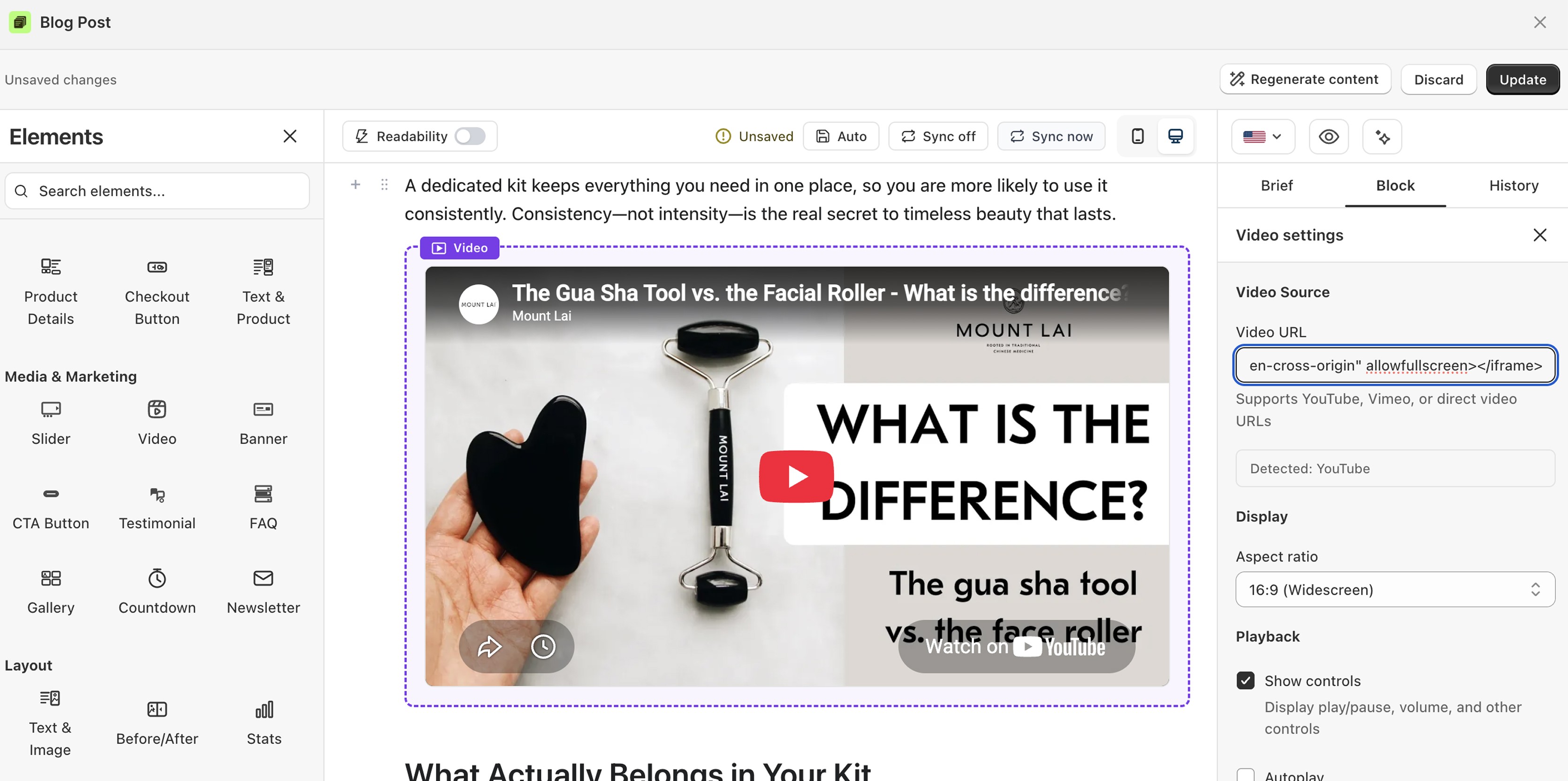
vevy.ai lets you embed video — YouTube, Vimeo, or a direct video file URL — into your Shopify blog posts as one of the media & marketing elements. Paste a link and the player is ready; no iframe code, no theme edits.
This works for posts made in Shopify's own blog editor too. For this, you just need to sync the post first on the vevy.ai's dashboard.
Syncing blog posts add them to the vevy.ai's dashboard, so you can add videos and other blocks with the Blog Builder, even if the post wasn't created in vevy.ai.
How to embed a video in a blog post in Shopify?
Open your blog post in vevy.ai's Blog Builder.
In the Elements panel on the left, open Media & Marketing and pick Video.
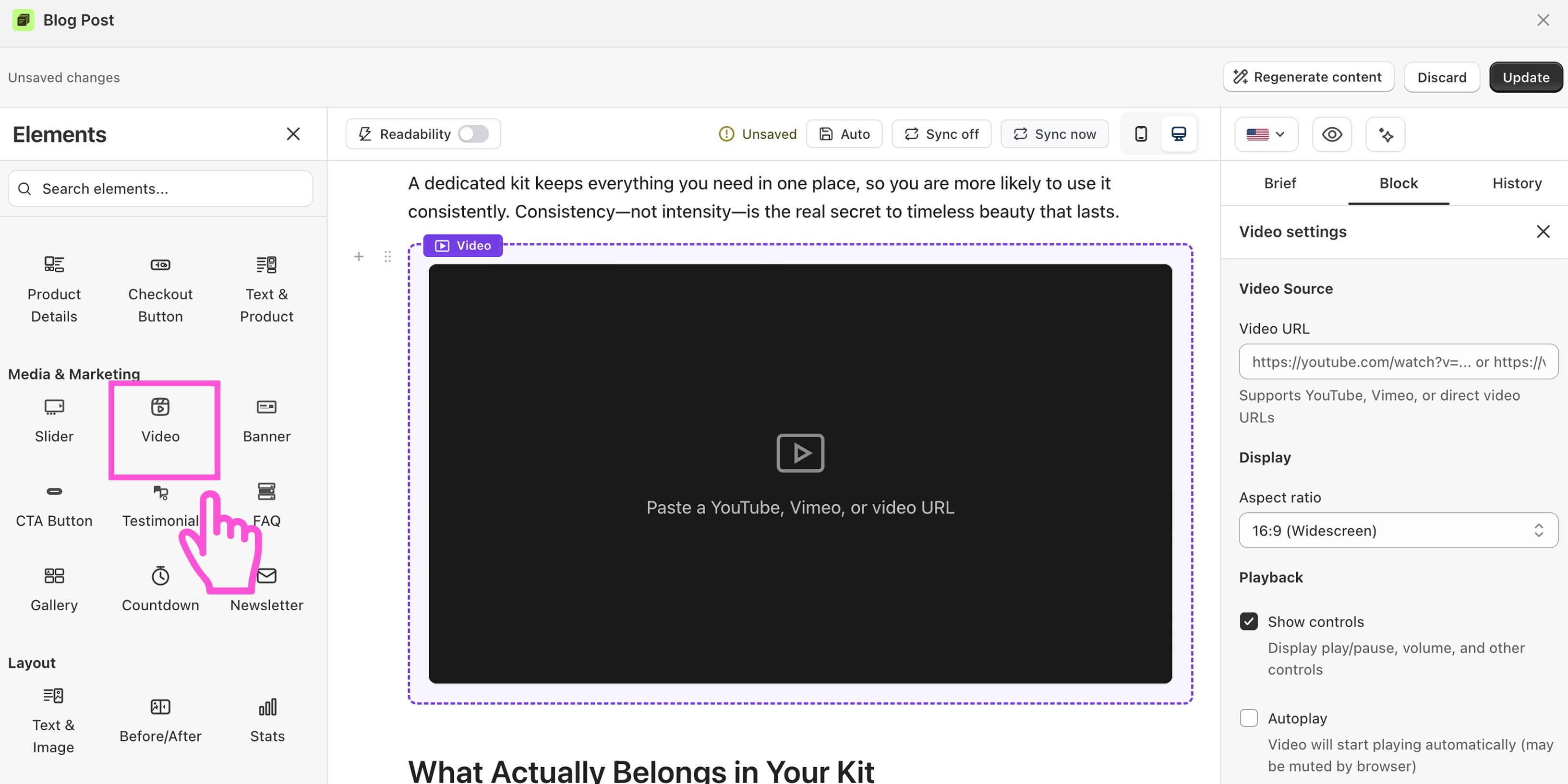
Drag the block into your post, right where you want it.
Click the block to open Video settings in the Block tab on the right.
Paste your Video URL — a YouTube link, a Vimeo link, or a direct video file URL. The player loads straight away.
Choose an Aspect ratio — 16:9 fits standard YouTube and Vimeo videos.
Set your Playback options: show controls, autoplay, muted, loop.
Click Save draft or Publish.
What you can customize
Video source — YouTube, Vimeo, or a direct video URL
Aspect ratio — widescreen and other ratios, so the player never letterboxes
Show controls — display play/pause, volume, and the rest of the player controls
Autoplay — start playing as soon as the reader reaches it
Muted — start the video without sound
Loop — replay the video continuously